How to Edit Product Photos for Your Shopify Store
Your product photos are the single biggest factor in whether a Shopify visitor adds to cart or bounces. Shoppers can't touch your product — the image is the product to them. Yet most merchants either ship phone snapshots straight to their store or burn hours in Photoshop.
This guide walks through exactly how to turn a raw product photo into a clean, professional, Shopify-ready image — and how to do it without leaving Shopify at all.
What "Shopify-ready" actually means
Before editing, know the target. A strong Shopify product image is:
Hit those four and your store instantly looks more trustworthy than 90% of the competition.
Step 1 — Remove or replace the background
A cluttered background is the fastest way to look amateur. You have two good options:
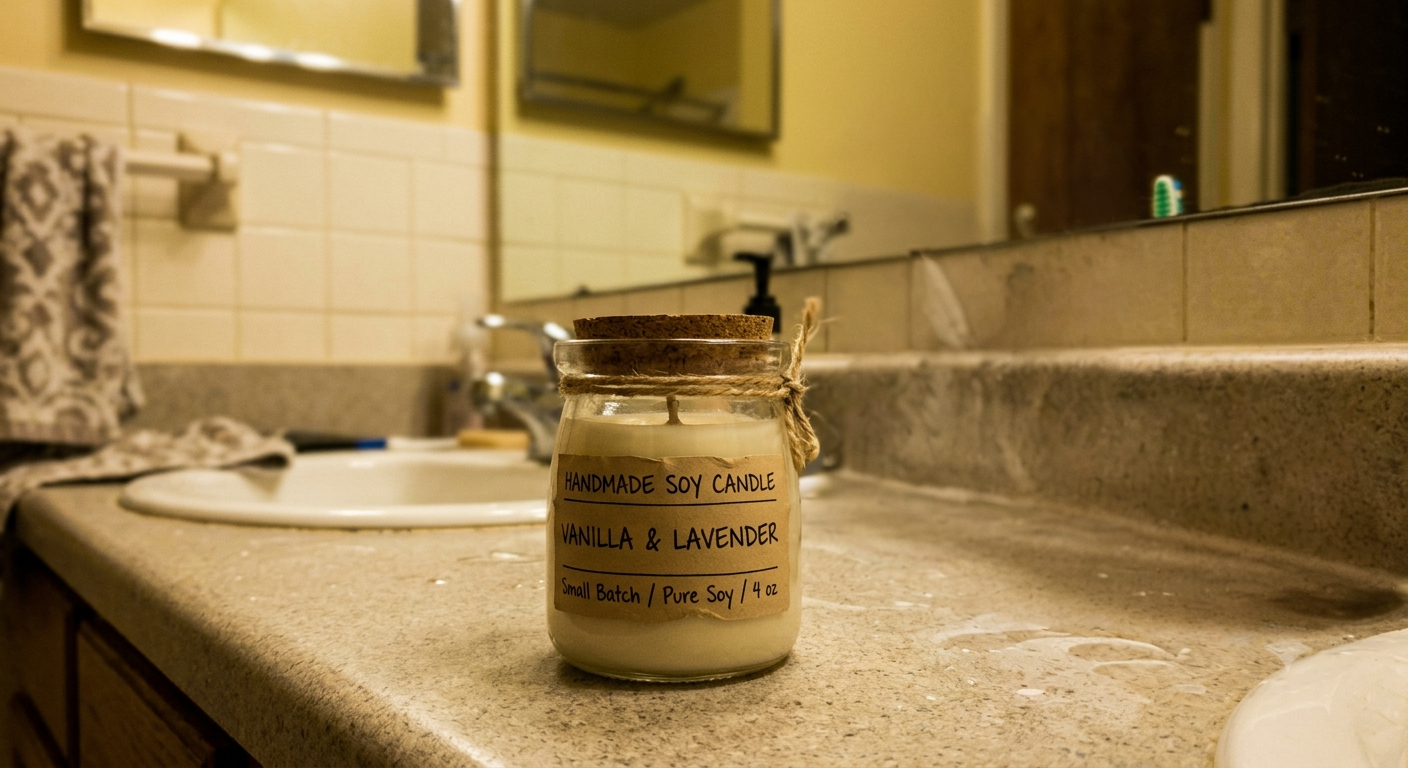
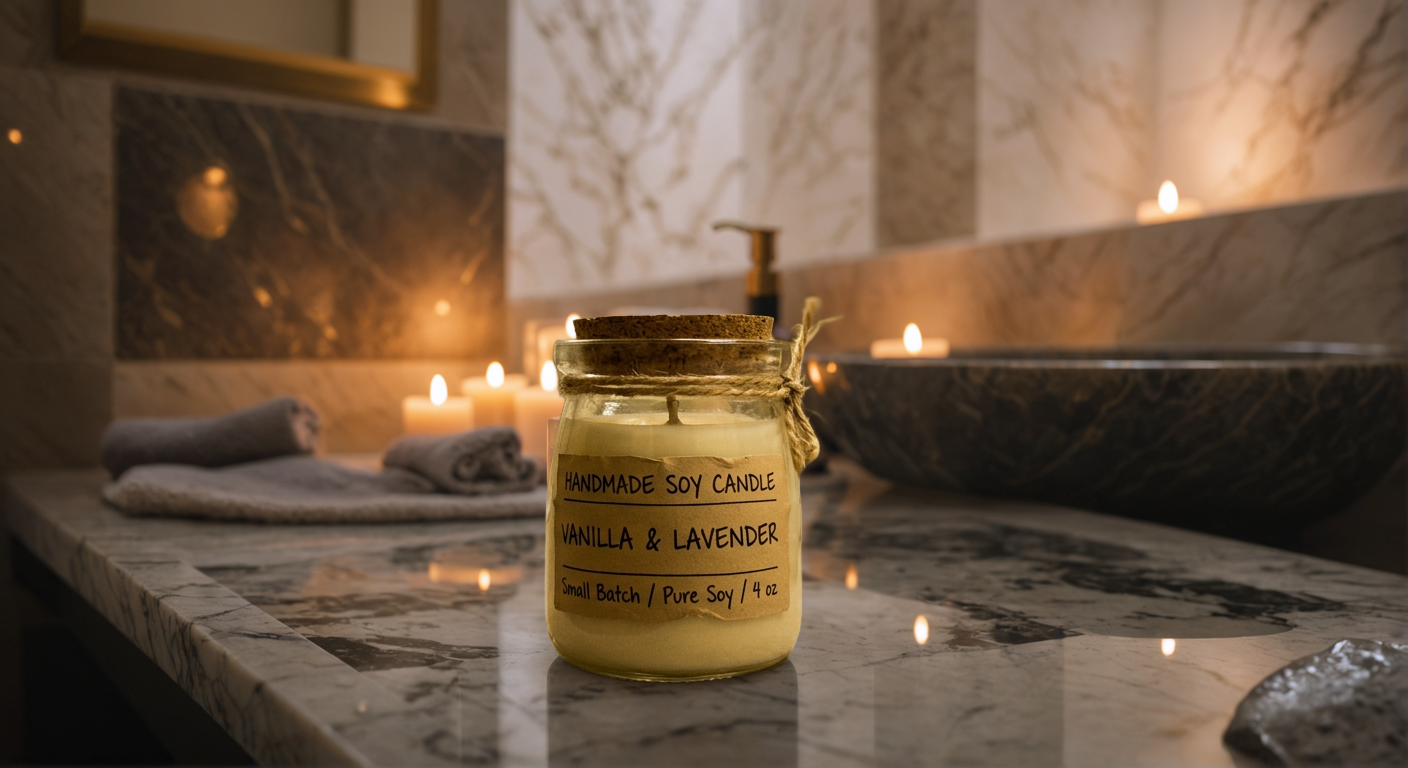
Doing this manually means tracing edges in Photoshop pixel by pixel. With AI, you upload the photo, pick "Remove Background" or describe a new scene, and it's done in seconds.
Step 2 — Get the size right
Shopify will display your image, but it won't fix a low-resolution one. Rules of thumb:
If your original photo is small or slightly blurry, upscale it before uploading — a sharp 2048px image beats a stretched 600px one every time.
Step 3 — Create color variants without a reshoot
Selling the same product in five colors? You don't need five photoshoots. Shoot one, then recolor.
AI recoloring takes your photographed product and produces accurate color variants — so your red, blue, and green listings all look professionally shot and perfectly consistent. This is one of the biggest time-savers for apparel, accessories, and home goods sellers.
Step 4 — Keep it consistent across the whole catalog
Consistency is what separates a "store" from a "brand." Once you've settled on a look — say, pure white background, square crop, product centered — apply it to every listing. A consistent catalog looks intentional and premium, even for a brand-new store.
The fastest workflow: edit inside Shopify
Here's the part most guides miss. You don't need to download photos, open a separate editor, export, and re-upload. Voxiru installs directly as a Shopify app, so you can run the whole pipeline — background removal, lifestyle backgrounds, upscaling, recoloring, and expanding for banners — without leaving your Shopify admin. Billing runs through Shopify too, so there's no separate account or card to set up.
The workflow becomes:
That turns a 20-minute Photoshop job into about 30 seconds, right where your products already live.
A quick checklist before you publish
Try it free
Voxiru gives you free credits to start — no credit card needed. Edit your first product photos in seconds, then install the Shopify app to keep everything in one place.
Install Voxiru on Shopify → or try the demo first — no signup needed.FAQ
What image size does Shopify recommend for product photos?
Shopify recommends square images around 2048 × 2048 pixels for the sharpest zoom on product pages, with files kept under the 20MB upload limit. Using the same dimensions across every listing keeps your product grid looking even and professional.
Do I need Photoshop to edit Shopify product photos?
No. AI tools handle background removal, recoloring, upscaling, and lifestyle backgrounds in seconds without any Photoshop skills. Voxiru runs the full pipeline as a Shopify app, so you can edit photos directly inside your Shopify admin.
How do I make product photos with a white background for Shopify?
Upload your photo to an AI background remover, select "remove background," and export on white. With Voxiru you can do this in one step and, if you prefer, replace the background with a styled lifestyle scene instead of plain white.
Can I create color variants without reshooting the product?
Yes. AI recoloring takes one photographed product and generates accurate color variants, so every variant listing looks consistently shot without a separate photoshoot for each color.
Is there a Shopify app that edits product photos directly in the admin?
Yes. Voxiru installs as a Shopify app and bills through Shopify, letting you remove backgrounds, recolor, upscale, and expand product photos without leaving your store or setting up a separate account.
Built for Shopify merchants. Image sizes reflect Shopify's published recommendations as of 2026 — verify current limits in your Shopify admin.
Keep reading
Voxiru is Now on the Shopify App Store
Voxiru — the one-step AI product photo editor — is now available as a Shopify app. Edit product photos, remove backgrounds, recolor, and upscale without leaving your Shopify admin.
Voxiru vs Photoroom vs Remove.bg for Product Photos (2026)
An honest, side-by-side comparison of Voxiru, Photoroom, and Remove.bg for e-commerce product photography. Features, approach, and which tool fits which seller.
5 Product Photo Mistakes That Kill Your Sales
Your product photos might be costing you sales. Here are the 5 most common mistakes e-commerce sellers make and how to fix them instantly.